On-Screen Camera Controls vs. Written Camera Language: Two Ways to Direct an AI Video Shot, Compared
October 6, 2026 · 9 min read
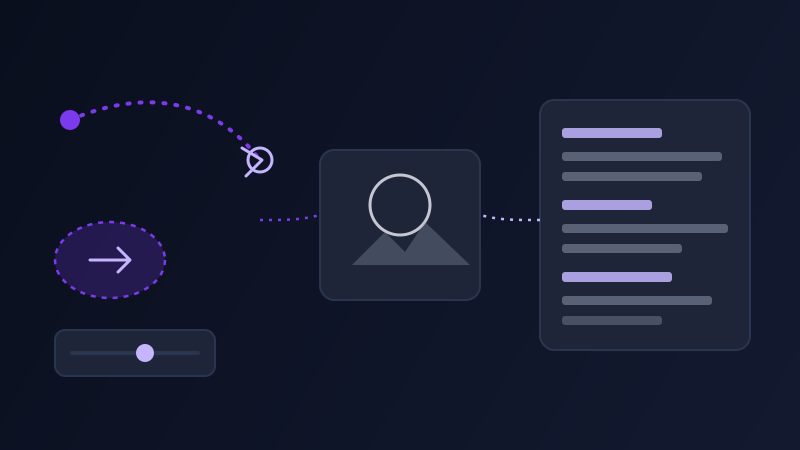
There are two completely different interfaces for telling an AI video tool how the camera should move. One is a sentence: "slow dolly in," "handheld tracking shot following the subject," "crane up and over." The other is a literal on-screen control, a path you drag, a region you paint, a preset you pick from a dropdown, that the tool converts into motion without you ever typing a camera term at all. Most people learn one of these first and assume it is simply how camera direction works in AI video. It is not. Which interface actually exists, and which one a given tool trusts more, varies enormously from one video model to the next, and reaching for the wrong one is one of the most common reasons a camera move comes out static, wrong, or quietly ignored.
Two layers for directing a camera, not one
Every AI video tool accepts a text prompt, so written camera language is the one layer that is always available no matter which tool you are using. A second layer, a dedicated UI control that lets you specify motion without words, only exists on some tools, and where it exists it is usually the more precise, more reliable way to get a specific move, because it is not relying on the model's interpretation of a word like "pan" to mean the same thing it meant in training. The practical question is not which layer is better in the abstract, it is which layer your specific tool actually offers, and whether it offers one at all.
Written camera language: the layer that always exists
A core vocabulary of camera terms carries real, consistent meaning across nearly every AI video model, because that vocabulary comes from a century of film production and shows up constantly in the captioned footage these models train on: pan (rotating sideways from a fixed point), tilt (rotating up or down from a fixed point), dolly (physically moving the camera forward or back), truck (moving the camera sideways), crane (moving the camera up or down through space), orbit (circling around a subject), and handheld (a slight, irregular shake implying a person is holding the camera). Zoom is the one term worth isolating, because it describes a lens changing focal length rather than the camera physically moving, and it produces a visibly different, flatter kind of motion than a dolly even though casual usage often treats the two as interchangeable. Naming the specific term rather than a vague stand-in like "camera moves closer" gives the model a much narrower, more consistent target, since "moves closer" could resolve as a dolly, a zoom, or a crop, and different tools default to different guesses.
Dedicated on-screen controls: a second layer some tools add on top
Runway has built out the most literal version of this second layer. Its Motion Brush lets you paint directly over a region of the source image or frame and assign that painted area a specific direction and intensity of movement, water that should ripple, hair that should sway, a car that should drive forward, independent of anything stated in the text prompt. Runway's camera control panel sits alongside it as a separate, more traditional set of sliders for pan, tilt, zoom, and roll, letting you dial in a camera move numerically rather than describing it in words at all.
Kling offers a comparable idea through a dedicated camera movement menu rather than a freeform paint tool, a set of named presets, push in, pull out, pan left or right, tilt up or down, and in later versions combination moves that blend two of these into one continuous motion, selected from a UI control rather than typed as a sentence. Luma's Dream Machine takes a middle path: its interface exposes a library of named camera concepts, orbit left, crane up, FPV, that you select from a menu, but under the hood these concepts are appended to the underlying prompt as text rather than processed through a separate motion-vector system, which makes Luma's version of this feature closer to a curated vocabulary picker than a truly independent control layer. Pika has shipped similar pan, zoom, and rotate toggles at different points as dedicated buttons rather than words typed into the prompt box.
Sora and Veo: text is still the only interface
Sora and Veo have not shipped anything comparable to Motion Brush or a camera preset menu; the written prompt is the entire interface for directing the camera on both tools. That makes the vocabulary choice carry more weight than it does on a tool with a fallback UI control, since there is no second channel to correct a camera move that the words failed to specify clearly. It also means the core film-production terms, dolly, pan, tilt, crane, handheld, static, do more work here than almost anywhere else, because a vague or missing camera description has nothing else in the interface to fall back on, and the model will simply choose a default, which is usually a slow, generic push that may not match the shot you had in mind at all.
When the on-screen control and the written prompt disagree
On a tool that offers both layers, the two are not always reading from the same source, and a mismatch between them is a common, confusing failure. Setting a Motion Brush region to drift left while the text prompt also says "camera pans right" gives the model two competing instructions about the same motion, and which one wins is not something you can reliably predict from the interface alone. The safer pattern on any tool with a dedicated camera control is to let the control handle the camera move entirely and keep the text prompt focused on everything the control cannot touch, subject, lighting, style, pacing, rather than restating a camera direction in both places and risking a conflict neither layer was designed to resolve gracefully.
Keeping a multi-shot sequence consistent without a shared control layer
A sequence that cuts between several AI-generated shots often moves between tools, or between a tool's UI control and its text prompt, shot by shot, and nothing automatically keeps the camera vocabulary consistent across that boundary. A sequence that opens with a Motion Brush-driven push on Runway and continues with a written "slow dolly in" on Sora is describing the same kind of move with two different mechanisms, and the only way to keep the two shots feeling like one coherent sequence is to make sure the written description for the second shot matches the speed and intensity the first shot's control actually produced, rather than guessing at an equivalent term and hoping it lands the same.
Common mistakes
Typing a camera instruction into the text prompt on a tool that also has a dedicated camera control, then being surprised when the two disagree about which one takes precedence. Using "zoom" and "dolly" interchangeably, when the two produce visibly different kinds of motion, a flattening lens change versus a true change in camera position. Assuming every tool has a Motion Brush-equivalent and writing a prompt that only names camera terms vaguely because "the UI will handle the details" on a tool, like Sora or Veo, that has no such UI at all. And forgetting that Luma's named camera concepts are really just curated prompt text under the hood, so stacking a camera concept selection with a conflicting written camera term in the same prompt produces the same kind of disagreement a true dual-layer tool would.
Where Promptima handles this
Knowing whether your target tool has a dedicated camera control at all, and if it does, whether to let that control handle the move or write it out in words instead, is exactly the kind of tool-specific detail that changes as each platform ships new features. Promptima's video prompt generator asks which tool you're generating for and writes the camera instruction accordingly, full written camera language for a text-only tool like Sora or Veo, or a tighter prompt that stays out of the way of a dedicated control on a tool like Runway or Kling, so the two layers never end up fighting each other.
Frequently asked questions
Do all AI video tools let you control the camera with on-screen controls?
No. Runway offers both a Motion Brush for painting directional motion onto a region and a separate camera control panel with pan, tilt, zoom, and roll sliders. Kling offers a preset menu of named camera moves. Luma exposes a library of camera concepts that are converted to prompt text behind the scenes. Sora and Veo have no dedicated camera UI at all, written camera language in the text prompt is the only way to direct the camera on either tool.
What's the difference between describing a 'zoom' and a 'dolly' in an AI video prompt?
A zoom describes a lens changing focal length while the camera stays in place, which produces a flatter, more compressed-looking change in framing. A dolly describes the camera physically moving closer to or farther from the subject, which changes the perspective and parallax between foreground and background. The two are often used interchangeably in casual speech but produce visibly different motion, so naming the correct one matters.
What happens if a text prompt and a camera UI control disagree on a tool that has both?
It's unpredictable which one wins, and the result is often a muddled compromise between the two. The safer approach on any tool with a dedicated camera control, like Runway's Motion Brush or Kling's preset menu, is to let that control handle the camera move entirely and keep the written prompt focused on subject, lighting, and style instead of restating the camera direction a second time.
Why does written camera language matter more on Sora and Veo than on Runway?
Because it's the only interface either tool offers for directing the camera. Runway and Kling both let you fall back on a dedicated UI control if the words alone don't produce the move you want, but Sora and Veo have no such fallback, so a vague or missing camera description has nothing else to catch it, and the model defaults to a generic move that may not match the intended shot.
Try Promptima's video prompt generator — select your target tool and it writes the camera instruction in the exact vocabulary that tool's own controls, or lack of them, actually respond to →
✦ Try Promptima freeMore articles
Best AI Prompt Optimizer Tools in 2026 (And When to Use Each)
Prompt marketplaces, browser extensions, manual prompt engineering, and dedicated optimizers all solve a different version of the same problem. Here is how to tell which one you actually need.
How to Turn One Photo Into a Ready-to-Use AI Video Prompt
You have an image whose look you want to bring to life as a video. The problem is that video AI tools don’t read image prompts — they need camera, motion, and duration described in a completely different structure. Here’s how to bridge the two.