How to Write AI Prompts for Infographics and Data Visualizations That Don't Look Cluttered
October 8, 2026 · 8 min read

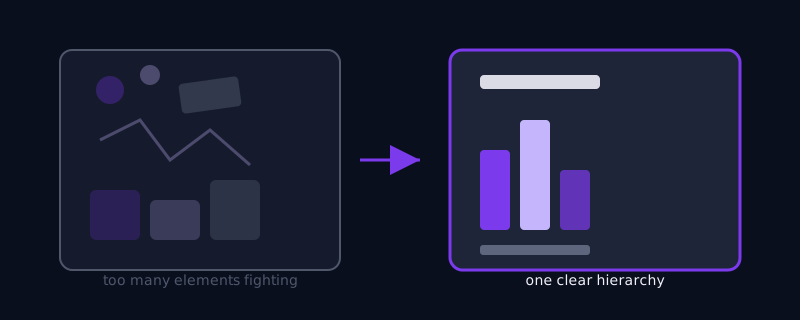
Most AI image prompts describe a single scene: a subject, a setting, a lighting style. An infographic prompt is a different kind of request entirely, because an infographic is not one subject, it is several pieces of information, a chart, a set of labeled icons, a short headline, arranged so a viewer can scan them in order. Describing all of that the way you would describe a photo, by listing everything you want in the frame, is exactly what produces the cluttered, visually noisy result most people get on their first attempt: four icons, two chart types, a headline, and three callout boxes all competing for the same visual weight because nothing in the prompt told the model which element matters most.
Infographics need a hierarchy, not a list
The fix starts with deciding what the single most important piece of information is before writing the prompt at all, then describing the rest in relation to it rather than as a flat list of equally-weighted elements. 'A bar chart as the central visual, with a one-line headline above it and three small labeled icons below it, no other chart types, no decorative background elements' gives the model one clear structure to build. 'A chart showing growth, some icons representing our values, a headline, and maybe a map in the corner' gives it four unrelated ideas to reconcile with no instruction about which one anchors the composition, and the result reads exactly as scattered as the prompt that produced it.
Name the chart type explicitly, and only one per section
Bar chart, line graph, donut chart, pie chart, and scatter plot are all visually distinct shapes with specific conventions, bars rising from a baseline, a ring with segments, a line tracking across an axis, and naming the specific type you want gets a far more accurate result than a vague 'a chart' or 'some data visualization,' which leaves the model to guess at a shape and often blends two chart conventions into one confused hybrid. If an infographic genuinely needs more than one chart, describe them as separate, clearly bounded sections, 'a bar chart in the top half and a donut chart in the bottom half, divided by a thin horizontal line,' rather than letting the model decide how to combine them inside a single region.
Icons need a consistent style, named once
A row of icons that are meant to feel like a matched set, line icons, flat filled icons, three-dimensional icons, falls apart visually the instant even one icon in the set renders in a different style, and this is one of the most common small failures in AI-generated infographics. Naming the icon style once, explicitly, 'simple flat-color line icons in a single consistent style,' and repeating that same phrase if you are generating multiple icons separately to composite together, keeps the set looking designed on purpose rather than assembled from mismatched pieces.
Keep every label and number short, or skip generating them at all
Infographics live and die on text, axis labels, percentages, legend entries, and all of the text-rendering limitations that apply to any AI-generated image apply here too, often more severely, because an infographic typically needs several separate short text elements rather than just one. A single word or number per label has a real chance of rendering legibly; a full axis with ten precisely labeled data points does not, on essentially any current tool. The more reliable professional pattern is to generate the visual structure, the chart shapes, the icon set, the overall layout, without committing to exact numbers or labels inside the model, then add the real data as text in a design tool afterward where every character is guaranteed correct.
Color should carry meaning, not just decoration
A well-designed infographic usually uses color to group related information, every bar in one category sharing a color, a single accent color marking the one data point that matters most, rather than using color purely for visual variety. Prompts that specify this intent, 'use one accent color to highlight the highest bar, with the rest of the chart in a muted neutral tone,' produce a result that reads as intentional data storytelling. Prompts that only specify a general color palette without tying it to the data produce a visually pleasant image that does not actually help anyone read the chart faster, which defeats the purpose of an infographic in the first place.
Common mistakes
Listing every element you want at once with no indication of which one is the visual anchor. Asking for multiple chart types to share one undivided region instead of giving each its own clearly bounded section. Letting an icon set drift across styles because the style was only described once, loosely, at the start of a long prompt. Trying to get ten precise, correctly spelled data labels directly from the image model instead of adding real text afterward. And choosing a color palette for looks alone instead of using color to group and highlight the actual data.
Where Promptima handles this
Structuring an infographic request by hierarchy, chart type, icon consistency, and which text should be generated versus added afterward is a different discipline than writing a normal scene-based image prompt, and it is easy to default back to a flat list of everything you want. Promptima's image prompt generator organizes an infographic brief into that structure automatically, one anchor element, clearly bounded supporting sections, a single named icon style, so the result reads as one coherent chart instead of a handful of competing ones.
Frequently asked questions
Why do AI-generated infographics often look cluttered even when the prompt seems detailed?
Because a detailed prompt that lists every element as equally important gives the model no hierarchy to build around. An infographic needs one element to visually anchor it, with everything else arranged as clearly subordinate sections. A prompt written as a flat list of charts, icons, and callouts with no indication of priority tends to render exactly that scattered, with every element fighting for the same visual weight.
Should I ask for exact numbers and data labels in an infographic prompt?
Generally no, for anything beyond a single short label or number. Text rendering limitations apply to every short phrase in an AI-generated image, and an infographic typically needs several of them at once, which compounds the risk of errors. The more reliable approach is to generate the visual structure and chart shapes without committing to exact figures, then add the real data as text afterward in a design tool.
How do I keep a set of icons in an infographic looking consistent?
Name the icon style explicitly and specifically, such as 'simple flat-color line icons in a single consistent style,' and repeat that exact phrase if you are generating icons in separate passes to composite together. Icon sets most often fall apart visually when the style is described once, vaguely, at the top of a longer prompt and never reinforced for each individual icon.
What is the best way to combine two different chart types in one infographic?
Give each chart its own clearly bounded section rather than describing both inside one shared region. A prompt like 'a bar chart in the top half and a donut chart in the bottom half, divided by a thin horizontal line' tells the model exactly where one visualization ends and the other begins, instead of leaving it to blend two different chart conventions into one confused hybrid shape.
Try Promptima's image prompt generator, which structures infographic requests by hierarchy and data type instead of listing every element at once, so your target tool has one clear layout to build instead of a dozen competing ones →
✦ Try Promptima freeMore articles

Best AI Prompt Optimizer Tools in 2026 (And When to Use Each)
Prompt marketplaces, browser extensions, manual prompt engineering, and dedicated optimizers all solve a different version of the same problem. Here is how to tell which one you actually need.

How to Turn One Photo Into a Ready-to-Use AI Video Prompt
You have an image whose look you want to bring to life as a video. The problem is that video AI tools don’t read image prompts — they need camera, motion, and duration described in a completely different structure. Here’s how to bridge the two.