How to Write AI Prompts for Motion Graphics and Explainer Videos That Don't Look Like a Slide Deck
October 5, 2026 · 8 min read

Most AI video prompting advice assumes you want something photorealistic, a person, a landscape, a product shot that looks like it was filmed. Motion graphics and explainer videos want the opposite: flat shapes, simplified icons, text that moves on cue, a clean palette instead of realistic lighting. Prompting for one with vocabulary built for the other is a common, avoidable failure. Ask a video tool for "cinematic lighting" and "photorealistic detail" when what you actually want is a two-dimensional icon animation, and you will get exactly what you asked for, a realistic-looking scene that has nothing to do with the clean vector animation the brief actually called for.
Why photorealistic video prompts don't transfer
A photorealistic prompt spends most of its instructions on things motion graphics doesn't use at all, lens behavior, skin texture, realistic shadow falloff, depth of field. A motion graphics prompt needs to spend that same space on things a photorealistic prompt never mentions, shape language, flat color fills, line weight, and how elements enter and exit the frame. Carrying photorealistic habits into a motion graphics prompt usually produces a result stuck awkwardly in between, shapes rendered with unwanted realistic shading, or icons that look like 3D renders instead of flat vector art, because the model is trying to satisfy both vocabularies at once from a prompt that only clearly specified one of them.
The building blocks of a motion graphics prompt
Style first: name the actual visual language, flat vector illustration, kinetic typography, isometric icon animation, 2D cutout animation, rather than leaving it to a default that will likely lean photorealistic. Palette: a small, named set of colors, since motion graphics reads as clean specifically because it limits itself, an unconstrained palette produces a busier, less polished-looking result. Shape language: simple geometric forms, rounded or sharp edges, consistent line weight, stated explicitly rather than implied. Typography animation: how and when text enters, slides in from the left, fades up, snaps into place on a beat, since text behavior is often the single most noticeable element in an explainer video and the easiest one to leave unspecified by accident. Pacing: motion graphics generally reads as quick and punctuated rather than slow and drifting, and naming that pace directly, quick cuts on a beat versus a slow continuous drift, changes the result more than almost any other instruction.
Structuring a scene-by-scene explainer prompt
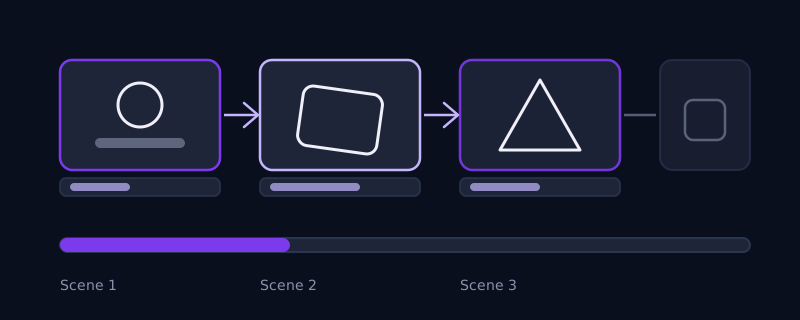
An explainer video is rarely one continuous shot, it is a sequence of short scenes, each one making a single point before cutting to the next. The prompt should mirror that structure rather than describing one long continuous motion: name each scene, what shape or icon is on screen, what it does, and what text appears, in order. "Scene one: a circle icon representing a user profile scales in from nothing. Scene two: the circle splits into three smaller icons representing features, sliding outward. Scene three: text reads 'built for your workflow' and fades up beneath the icons." This is closer to writing a shot list than writing a single flowing description, and it matches how motion graphics tools and most video AI tools actually assemble a result better than one unbroken paragraph does.
Tool notes
Sora and Veo can produce flat, graphic-style motion when the prompt explicitly asks for it, naming "flat vector illustration style" or "2D motion graphics, no photorealism" up front matters far more here than in a photorealistic prompt, since the unstated default on both tools leans toward realism. Runway tends to reward a short, direct style statement at the very start of the prompt before any scene description follows. Kling and most other video tools trained primarily on live-action footage are the least reliable choice for this specific style, since their training weight leans heavily toward realistic motion, and a motion graphics request on one of these tools is more likely to drift back toward a photorealistic look than on a tool with broader stylistic range.
Keeping a brand or icon set consistent across scenes
An explainer video usually needs the same icon style, line weight, and palette to hold steady from the first scene to the last, since a shift partway through reads as a visible inconsistency rather than a stylistic choice. Naming the style and palette once at the top of the prompt is not enough on its own if the prompt also describes several distinct scenes, since a model generating scene by scene can drift slightly each time. Repeating the core style terms, flat vector, rounded corners, the same three named colors, inside each individual scene description, rather than trusting one upfront mention to hold for the whole sequence, is the more reliable way to keep the look from drifting as the video moves from scene to scene.
Common mistakes
Leaving the visual style unstated and assuming the default will be flat and graphic, most video tools default toward photorealism unless told otherwise. Writing one long continuous scene description for what is actually a sequence of distinct beats, which produces a single drifting motion instead of the punctuated, cut-to-cut pacing explainer videos need. Forgetting to specify how on-screen text enters and exits, leaving it to render as a static overlay instead of an animated element. And naming a palette with too many colors, which undercuts the clean, simplified look that makes motion graphics read as polished in the first place.
Where Promptima handles this
Switching between photorealistic and motion graphics vocabulary, and knowing which tool actually holds a flat, graphic style reliably, is exactly the kind of tool-specific detail that is easy to get wrong without regular practice. Promptima's video prompt generator includes motion graphics as a distinct style option, structuring the scene-by-scene shot list, palette, and typography timing automatically instead of requiring you to know the vocabulary split tool by tool.
Frequently asked questions
Why does my AI video prompt keep coming out photorealistic when I want flat animation?
Most video AI tools default toward photorealism unless the prompt explicitly states otherwise. Naming the actual style you want, flat vector illustration, 2D motion graphics, kinetic typography, at the start of the prompt is usually enough to redirect the result, since the model otherwise falls back to its more heavily trained default.
Should a motion graphics prompt describe one continuous scene or multiple scenes?
Multiple scenes, structured like a shot list rather than one flowing paragraph. Explainer videos are typically a sequence of short, distinct beats, each making one point before cutting to the next, and naming each scene's shape, action, and text separately matches that structure far better than a single continuous description.
Which AI video tools handle motion graphics and flat animation well?
Sora and Veo can produce flat, graphic-style results when the style is stated explicitly up front. Runway responds well to a short, direct style statement placed before the scene description. Tools trained primarily on live-action footage are generally less reliable for this style, since their training leans heavily toward realistic motion by default.
How important is color palette in a motion graphics prompt?
More important than it is in a photorealistic prompt. Motion graphics reads as clean and polished specifically because it limits itself to a small, deliberate set of colors, naming that palette explicitly, rather than leaving it open, keeps the result from looking busier and less intentional than the brief called for.
Try Promptima's video prompt generator, pick motion graphics as the style and it structures the shot list and timing for you →
✦ Try Promptima freeMore articles

Best AI Prompt Optimizer Tools in 2026 (And When to Use Each)
Prompt marketplaces, browser extensions, manual prompt engineering, and dedicated optimizers all solve a different version of the same problem. Here is how to tell which one you actually need.

How to Turn One Photo Into a Ready-to-Use AI Video Prompt
You have an image whose look you want to bring to life as a video. The problem is that video AI tools don’t read image prompts — they need camera, motion, and duration described in a completely different structure. Here’s how to bridge the two.